The HeartBleed hack exposed the consequences of security holes in software designed to provide encryption of network traffic.
However, this doesn’t mean that all encryption software has holes and it’s certainly better to have some form of encryption than none at all.
I’ve watched numerous online demos, official training videos and worked on real life HANA instances. All of these systems so far, have not enabled SSL (now called TLS) between the HANA Studio and the SAP Host Agent or the HANA Studio to the HANA database.
This means that specific communication between the HANA Studio, the SAP Host Agent and the HANA database indexserver, is not encrypted.
The HTTP protocol has been around for a long time now (thanks Tim).
It is inherently insecure when using HTTP BASIC authentication, since the username and password which is passed over HTTP to a server that has requested authentication, is sent in the clear (unencrypted) but encoded in BASE64.
The BASIC authentication is used to authenticate the HANA Studio with the SAP Host Agent.
What does this mean with regards to SAP HANA and the SAP HANA Studio?
Well, it means that any user with a network packet sniffer (such as Wireshark) could intercept one vital password, that of the <sid>adm SUSE Linux user.
In a SAP HANA system, the software is installed and owned by the <sid>adm Linux user. Usually <sid> is a unique identifier for each HANA system in a SAP landscape. As an example, H10 or HAN or any other 3 alphanumeric combination (within certain SAP restrictions) can be used.
When the HANA Studio is used to control the HANA database instance (start up and shutdown), the HANA Studio user is prompted to enter the username and password for the <sid>adm user.
This username and password is then sent via HTTP to the SAP Host Agent installed on the HANA server. The SAP Host Agent uses the username and password to start or stop the HANA database instance.
If the password for the <sid>adm user is obtained, it is possible for a malicious user to establish an SSH connection directly to the SUSE Linux server where the HANA instance is installed, then control the instance, or access the database directly using a command line interface for executing SQL statements.
Here’s a 6-step example which took me 10 minutes to setup, trace, collect the data and then login to the Linux server as an authorised user.
Step 1, Install and open Wireshark (on your PC) and start tracing for TCP connections to the HANA server on the Host Agent TCP port 5<xx>13.
Step 2, Launch HANA Studio (on your PC) and in the navigator right click and choose “Log On”:

Step 3, If you haven’t elected to save the username and password during previous use of the HANA Studio, you will be prompted. Otherwise, the system will auto-logon to the Host Agent.
Step 4, Analyse the Wireshark capture. You’re looking for the text “Authorization: Basic” in the TCP packets:
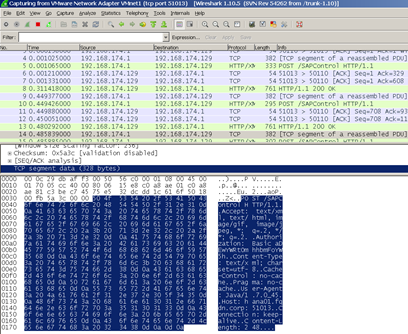
The actual string will look something like:
” Authorization: Basic aDEwYWRtOmhhbmFoYW5h “
I’ve copied an example HTTP POST out to a text editor for easy viewing:
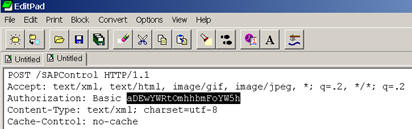
POST /SAPControl HTTP/1.1
Accept: text/xml, text/html, image/gif, image/jpeg, *; q=.2, */*; q=.2
Authorization: Basic aDEwYWRtOmhhbmFoYW5h
Content-Type: text/xml; charset=utf-8
Cache-Control: no-cache
Pragma: no-cache
User-Agent: Java/1.7.0_45
Host: hana01.fqdn.corp:51013
Connection: keep-alive
Content-Length: 248
Step 5, Decode the username and password in the BASIC authentication string using a base64 decoder. It’s possible to use an online one:

The output includes the username and password in the following format:
USERNAME:PASSWORD
Step 6, With our new found details, log onto the HANA server using an SSH terminal:
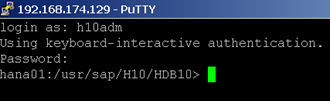
From this point onward it’s possible to access any data in the HANA database using command line tools.
SUMMARY:
You MUST enable SSL (TLS) encryption of the HTTP communications between the HANA Studio and the SAP Host Agent. Without this, you might as well put the password on a post-it note on your screen.
See https://service.sap.com/sap/support/notes/1718944
Another option would be to segregate the HANA Studio users on their own vLAN, or to firewall the SAP HANA Host Agent and HANA database indexserver ports, tying them to specific user PCs only.
Incidentally, the password for the SYSTEM user of the HANA database, is encrypted with SHA256. The encrypted string is then compared with the already encrypted password in the HANA database in order to authenticate a user.
However, if you have not enabled SSL between the HANA Studio and the HANA database indexserver, then all the of data retrieved from the database is sent in the clear. You don’t need to authenticate to the database if you can just read the network packets. This is true of most database connections.
