This blog contains experience gained over the years of implementing (and de-implementing) large scale IT applications/software.

HowTo: Install SAP HANA 2.0 in a VM in less than 30minutes – Part #3

This is the third part of my (quite large) post on how to install an SAP HANA 2.0 database into a SUSE Linux for SAP 12 SP3 virtual machine.

See Part #1 of the post here.
See Part #2 of the post here.

We continue from where we left off in part 2, just after we created a new 50GB disk volume for our new HANA install.
Check the new partition:

# df -h /hana
Filesystem                   Size  Used Avail Use% Mounted on
/dev/mapper/volHANA-lvHANA1   50G  33M   50G   1% /hana

Unmount the CDROM and install VMWare tools (I need it for access to my VMWare shared folder):

# umount /mnt/dvd

Select the option to re-install VMWare tools:


Mount the CD and extract the TAR file:

# mount /dev/sr0 -t iso9660 /mnt/dvd
# cd /tmp
# tar -xvf /mnt/dvd/VMwareTools-10.1.15-6627299.tar.gz
# cd vmware-tools-distrib
# ./vmware-install.pl

Choose YES to ALL prompts (especially to the ones to replace existing files).
Disable some SUSE Linux services that are more than likely not needed (in this specific case) and just consume precious memory:
Disable VMware thin printing:

# chkconfig vmware-tools-thinprint off

Disable Linux printing:

# chkconfig cups off

Disable Linux auditing:

# chkconfig auditd off

Disable Linux eMail SMTP daemon:

# chkconfig postfix off

Disable sound:

# chkconfig alsasound off

Disable NFS ( you might need it…):

# chkconfig nfs off

Disable the Machine Check Events Logging capture:

# chkconfig mcelog off

Double check the IP address of your VM:

# ifconfig | grep inet


Your IP address should be listed (you can see mine is 192.168.174.129).
If you don’t have one, then your VM is not quite setup correctly in the VMWare properties or your networking configuration is not correct, or you don’t have a DHCP server on your local network, or your network security is preventing your VM from registering it’s MAC address.  It’s complex.
Assuming that you have an IP address, check that you can connect to the SSH server in your VM using PUTTY :

Enter the IP address of your VM server:

Log into the server as root:

Now we’ve got access to the VM and disk space to create our HANA database and put the software.
To perform the HANA install, I’ve extracted my HANA patch/install media into a VMWare Shared Folders folder and simply extract the SAR file to my PC using SAPCAR.exe, sharing the directory location through VMware to the guest O/S.
Since I’ve used VMWare shared folders, I need to mount my folder (it’s shared via the VMWare Tools(:

# cd /mnt/hgfs/Downloads      [my VMware share name is “Downloads”]
# cd SAP_HANA_DATABASE      [this is my extracted SAR file]
# ./hdbinst –ignore=check_diskspace,check_min_mem

You will be prompted for certain pieces of information.  Below is what was entered:
Local Host Name: hana01
Installation Path:   /hana/shared
System ID:             H10
Instance Number: 10
Worker Group: default
System Usage: 3 – development
System Administrator Password:  hanahana
System Administrator Home Dir:  /usr/sap/H10/home
System Administrator User ID:  10001
System Administrator Login Shell:  /bin/sh
ID of User Group (sapsys): [I selected any]
Location of Data Volumes:  /hana/shared/H10/global/hdb/data
Location of Log Volumes:   /hana/shared/H10/global/hdb/log
Restrict maximum memory allocation? N
Database SYSTEM user password:   Hanahana1
Restart instance after reboot:  N

Summary before execution:
   Installation Path: /hana/shared
   SAP HANA System ID: H10
   Instance Number: 10
   Database Isolation: low
   System Usage: development
   System Administrator Home Directory: /usr/sap/H10/home
   System Administrator Login Shell: /bin/sh
   System Administrator User ID: 1001
   ID of User Group (sapsys): 79
   Location of Data Volumes: /hana/shared/H10/global/hdb/data
   Location of Log Volumes: /hana/shared/H10/global/hdb/log
   Local Host Name: hana01
   Worker Group: default

Installation will begin:


Installation & instance startup time was around 45 minutes due to the memory swapping.

That’s it for now.
We have a basic SYSTEM database (SYSTEMDB).

Some things to note at this point:
– SYSTEM database data and log files reside in /usr/sap/H10/SYS/global/data and /usr/sap/H10/SYS/global/log directories (linked to /hana/shared/H10/global).
– Initial usage of disk is around 4GB for data and 1 GB for logs.
– Used memory is around 6GB.
– The HANA Cockpit URL would be (if it was installed) https://192.168.80.2:4310/sap/hana/admin/cockpit   or port 8010 for non SSL.
– The above two URLs are served from the xsengine via the webdispatcher.
– You cannot permanently stop the webdispatcher or xsengine (but I can…).
– SAP note 2517761 tells you how to connect via HANA Studio to the system DB.
– You will need to add the h10adm username and password into HANA Studio to allow you to stop/start the system.
– You may need to add the hana01 and it’s FQDN to your PC’s hosts file to be able to successfully stop/start the system from HANA Studio.
******  OPTIONAL ********

We can slightly reduce the memory requirements of the statisticsserver (now embedded into the indexserver process) by following SAP note 2147247 to disable the inifile_checker service in the global.ini:
Switch to h10adm Linux user:

# su – h10adm
> hdbsql -i 10 -u SYSTEM -p Hanahana1 -d SYSTEMDB
hdbsql SYSTEMDB=> ALTER SYSTEM ALTER CONFIGURATION (‘global.ini’, ‘system’) SET (‘inifile_checker’, ‘enable’)=’false’  WITH RECONFIGURE;
hdbsql SYSTEMDB=> quit

******  OPTIONAL ********
We also reduce slightly the system global allocation limit to 12GB, so that we can consequently reduce the VM memory from 24Gb to 18GB:
NOTE: When you do this, you will not be able to run a Tenant Database because the Tenant DB indexserver process will need at least 8GB of memory to start.

> hdbsql -i 10 -u SYSTEM -p Hanahana1 -d SYSTEMDB
hdbsql SYSTEMDB=> ALTER SYSTEM ALTER CONFIGURATION (‘global.ini’, ‘system’) SET (‘memorymanager’, ‘global_allocationlimit’) = ‘12288’ WITH RECONFIGURE;
hdbsql SYSTEMDB=> quit

Restart the HANA system:

> sapcontrol -nr 10 -function Stop

Wait for it to be stopped:

> watch sapcontrol -nr 10 -function GetProcessList

Press CTRL+C once everything is shutdown (apart from the HDB Daemon).
Exit back to root:

> exit

Shutdown the server:

# shutdown -h now

Adjust the VM memory to be 18GB:

Power on the VM:

Log in as h10adm and start the HANA system:

> sapcontrol -nr 10 -function Start

******  OPTIONAL ********
We can create a new tenant database as follows (we would need at least 24GB of memory for SUSE in order to create and run the SYSTEM DB and the Tenant DB):

# su – h10adm
> hdbsql -i 10 -u SYSTEM -p Hanahana1 -d SYSTEMDB
hdbsql SYSTEMDB=> CREATE DATABASE HT1 SYSTEM USER PASSWORD Hanahana1;
hdbsql SYSTEMDB=> quit

If you wish to stop the Tenant database from starting, you can use SQL as per the help.sap.com, or if your SYSTEM DB will not start also, then you can use the temporary method (probably not recommended by SAP) of exporting the topology using hdbnsutil, adjusting the export file to set the Tenant DB “status” to “no” and then re-import the file using hdbnsutil.
Should you need to quickly (and nastily) kill off the SYSTEM DB and Tenant DB processes, you can use the hdbdaemon command: “hdbdaemon -quit”.

HowTo: Install SAP HANA 2.0 in a VM in less than 30minutes – Part #2

This is the second part of a three part post on how to install an SAP HANA 2.0 database into a SUSE Linux for SAP 12 SP3 virtual machine.
See Part #1 here.

During the VM start-up you may be prompted by VMWare to download the VMWare Tools, you should do this (it’s about 1 minute):

The SUSE installation can be started:

Customise the locale settings and accept the terms:

We skipped registration (we don’t need to update SUSE):

Select “SUSE Linux Enterprise Server for SAP Applications” and since we will use SSH, de-select “Enable RDP”:

Click “Network Configuration” in the top right hand corner:

I adjusted my install to use a static IP address, I also setup the hostname and fully qualified domain name at this point (you can change this later using “yast lan” if you want):
IP: 192.168.80.2  (relevant to my VMWare host-only setup)
Subnet: 255.255.255.0
Hostname: hana01.fqdn.corp

On the next page I added the same hostname and FQDN, then set the DNS resolver policy to “Only Manually” which will allow me to not use DNS at all:

We don’t need any addons:

Check the root partition size on /dev/sda1 and click “Edit Proposal Settings”:

We need to adjust the root partition format to be XFS:
NOTE: XFS is the only supported filesystem for the HANA data and log areas, so why not use it for everything.


Set the timezone:

Set the root password:

On the summary screen disable the firewall and ensure that SSH is enabled:

To minimise memory usage, we set the default start-up mode to “Text Mode” (to change click “Default systemd target”):

After all the screen prompts were answered the install time was approx 10 minutes (at least 1 coffee).
NOTE: There were a couple of instances where a package failed to install.  Clicking “Retry” completed the package installation.
We now need to apply the required O/S changes as per SAP note 2205917.  We can use the saptune command to do this:

# saptune solution apply HANA

Enable SAPTUNE to auto-start:

# saptune daemon start

Shutdown the server.

# shutdown –h now

Edit the VM to add a second hard disk for the HANA database:


We assign 50GB in one single file:


Power on the VM.
Log back in as root once it has rebooted.
Check that you can resolve the hostname:

# hostname
hana01
# hostname -f
hana01.fqdn.corp

15 MINUTES HAVE NOW ELAPSED!
Let’s mount the SUSE ISO on the server:

# mkdir /mnt/dvd
# mount /dev/sr0 -t iso9660 /mnt/dvd

Now install the Java runtime:

# cd /mnt/dvd/suse/x86_64
# rpm -i –nodeps java-1_8_0-ibm-*

Check the version is 1.8.0:

# java -version

Now we need to create our HANA database disk partitions.
First check which disk you’re using for the O/S:

# dmsetup deps -o devname


I can see that sda1 (sda) is currently mounted as my primary root and swap disk.
Which means that /dev/sdb will be my new HANA disk:

# ls -l /dev/sd*


WARNING: Adjust the commands below to the finding above, so you use the correct unused disk and don’t overwrite your root disk.
Create the new partition on the disk:

# fdisk /dev/<your disk device e.g. sdb>

Then enter:

n <return>
p <return>
1 <return>
<return>
<return>
t <return>
8e <return>
w <return>

At the end, the fdisk command exits.
Re-run fdisk to check your new partition:

Create the volume group and logical volume:

# pvcreate /dev/sdb1
# vgcreate /dev/volHANA /dev/sdb1
# lvcreate -L 51072M -n lvHANA1 volHANA

Format the new XFS (only one really supported) logical volume:

# mkfs.xfs /dev/volHANA/lvHANA1

Mount the new partition:

# mkdir /hana
# echo “/dev/volHANA/lvHANA1 /hana xfs defaults 0 0”   >> /etc/fstab
# mount -a

That is it for Part #2 of this guide.
Continue on to Part #3 for the completion of our HANA 2.0 install.

HowTo: Install SAP HANA 2.0 in a VM in less than 30minutes – Part #1

For the original post back in 2014 we used SAP HANA 1.0 sps07 and installed into a Virtual Machine running SUSE Linux 11.
Things have moved on since 2014 and we have now seen the arrival of HANA 2.0 with multi-tenant database feature and new HANA Cockpit and SUSE Enterprise Linux 12 with it’s new systemd daemon replacement of the old SYS V init scripts.
I decided it was time to update the post…
Scenario: You want to prototype something for a new HANA 2.0 database.  We can use the power of a virtual machine to get a HANA 2.0 database up and running in less than 30 minutes.
Well, it was supposed to be 30 minutes, and it sure can be 30 minutes, providing you have the right (fast) equipment to hand.
Remember, this is not a “Here’s the standard install process” hand-holding stuff – this is let’s get it installed and use it!
Here’s how…

What you’ll need:
– SAP HANA In Memory DB 2.0 install media from SAP Software Download Centre. 
This can be the Platform Edition (for native HANA systems) or the Enterprise Edition (for S/4HANA or BW/4HANA or any other x/4HANA).
I also cheated a little in my process, since I downloaded the “Installation / Patch” for a HANA database, since this contains the latest entire code line and installer but is much less in size.
In my example I use IMDB_SERVER20_012_3-80002031.SAR which is ~3.5GB in size.

– The SUSE Linux for SAP v12 sp02 or sp03 (recommended) install media (ISO).
This is free to download from https://download.suse.com (although you will need to register an account with SUSE) but you don’t need a license.  This is ~3.6GB in size and you only need the first DVD (DVD1).

– A valid license for the HANA database (platform edition or enterprise edition).

– SAP HANA Studio installed on a PC which can access the virtual HANA server you’re going to create (the Studio install media is contained within the full HANA install media DVD, or you can download it separately from SAP Software Download Centre).
In my example, I’m using IMC_STUDIO2_212_3-80000323.SAR (should be the same revision as the database) which is 734MB in size.
NOTE: The later revisions of HANA come with the HANA Cockpit built-in (web based) so you may not need the HANA Studio, it depends what you want to do with it.  See SAP note 2185556 for more details.

– A host machine to host the virtual machine.  You need at least 20GB of RAM, although if you configure your pagefile (in Windows) on SSD or flash, you could get away with 16GB (I did !!!).
– SAP notes access.  Specifically to read/check SAP notes 1984787, 2205917 & 1944799.
– A downloaded version of SAPCAR.exe on your PC (if, like me, you will be using the VMWare shared folders option to present your downloaded media to the gues O/S).

What we’re going to do:
– We’ll create a basic SUSE Linux for SAP 12 SP3 virtual machine.  You can use any host OS, I’m using Windows 7 64bit and VMWare Workstation Player v14.
– Because most people are using VMs to maximise infrastructure, we’ll go through a couple of steps to really reduce the O/S memory footprint and for efficiency we use SSH and the text mode installer for HANA.  We get this whole thing running in less than 16GB of RAM in the end.
– We’ll install a basic HANA 2.0 database (in multi-tennant mode – this is the future).  Initially we only get the SYSTEM DB, then we create a new tenant DB afterwards.

START THE CLOCK!

Create your basic VM for SUSE Enterprise Linux (I’m using SUSE Linux 12 for SAP SP3).
It will need the following resources:
– More than 16GB of RAM (initially 24GB for installation) on the physical host machine .
– 8GB of disk for the O/S.
– 50GB of disk for the basic HANA DB with nothing in it, plus the installed software.
– 20GB of disk on the physical host  for swapping (if you don’t have 24GB of RAM).
– 2 CPUs if you can spare the cores.
– A hostname and fully qualified domain name.
– Some form of networking (use “Bridged” if you need to access this across the network, I will be using “Host-Only”).
Let’s create the VM and set the CDROM to point to the SUSE Linux 12 SP3 install DVD ISO file:

We choose to do the install later to avoid the VMWare “EasyInstall” feature:


Set the initial hard disk to have 8GB and store it in one big file (it’s up to you really):

Now customise the hardware:
Set the RAM to 24GB or more (you really need 24GB of RAM, but I have only 16GB and will be ready for some serious swapping).  After installation, at a minimum the VM should have 18GB of RAM for day-to-day running:

Give the VM at least 2 cores:

Set the CD/DVD to use the SUS Linux installation ISO you downloaded:

Use bridged networking if you need to access over the network, but only if you have DHCP enabled or you’re a network guru.  I’m using “Host-only”:

I also removed the Sound Card and Printer.
Summary:

Start the VM.

We’re off.
The SUSE install took 12.5 minutes in my testing on a core i5 (unfortunately only 3rd gen 🙁  )
That is it for Part #1 of this guide.
>> Continue on to Part #2 for the completion of our HANA 2.0 install.

Basic Performance Tuning Guide – SAP NetWeaver 7.0 – Part IV – ABAP Runtime Analysis

This is the final part of my SAP NetWeaver 7.0, Basic Performance Tuning Guide.
You may wish to review Part I, Part II or Part III.
In this part I will focus on the use of ABAP Runtime Analysis to check performance of ABAP programs/reports.  This will help you locate areas of ABAP that are eating up valuable response time.

Execute transaction SE30.
Enter the transaction (or program or function module) that you wish to analyse:

Edit the “Measurement Restrictions” variant to either create your own, or simply adjust the DEFAULT.
This will allow us to display additional information which can be very useful when trying to determine performance problems.

Tick the “DB-level ops” option on the Statements tab:

On the Duration/Type tab, select “None” for Aggregation and tick “With memory use”:

The transaction or program you entered will be run, but you should see a prompt at the bottom of the screen telling you that the measurement process has started:

Perform the actions you need in the transaction/program.
Once you have finished, simply click Back (exit from the transaction) to the SE30 main screen:

The SE30 screen will display a prompt showing the analysis has finished:

The trace data is stored in a file on the SAP instance server.
This can be seen by clicking the “File Info…” button:

You can see the file name and path:

If you need to load the trace data again for analysis, you can simply click the “Other File…” button on the main screen.
It’s also possible to transfer the analysis files via RFC to another SAP system from the “Other File…” sub-screens.
This is very useful if you want to compare performance between two systems.
NOTE: The performance data files are only retained on the server for eight days.  I haven’t found a way of extending this.

Let’s analyse the stats.
Click the Evaluate button:

You will see a basic breakdown of the transaction runtime performance analysis in histogram form.
The three different areas are shown (ABAP, Database and System) against time (as a percentage):

More details on this screen can be found here: https://help.sap.com/saphelp_nw70/helpdata/en/c6/617d27e68c11d2b2ab080009b43351/content.htm

The values shown correlate to the response times measured in the single record statistics plus the time required for analysis.
Note that DATABASE time above, also includes the time the system takes to open and close cursors etc, not just the SQL runtime.
For reference, the STAD output for the same operation (notice the slightly lower DB req time):

SAP STAD output DB request time

The most interesting buttons at the top of the SE30 screen are “Hit List”, “Table Hit List” and “Call hierarchy”.
 Click the Hit List button:

STAD output hit list

The Hit List will be displayed in descending order (gross time):

STAD output hit list output

The columns are defined as follows:

No.” – Shows the number of times a call was made.
If a “SELECT” is performed in a loop, then this will show the number of times the call was made in total in the loop.

Gross” – Total execution time in microseconds (running bottom to top of the hit list).
Net” – The time in microseconds for the specific call(s)
Call” – The program component that was being executed.
In program” – The main program of the component.
Type” – The type of call (DB, System, Non-system).

SAP says here https://help.sap.com/saphelp_nw70/helpdata/en/c6/617d27e68c11d2b2ab080009b43351/content.htm:
Gross time
The total time required for a call. This includes the runtime of all modularization units and ABAP statements called by the subject.

Net time
The net time is the gross time less the time required for modularization units (MODULE, PERFORM, CALL FUNCTION, CALL SCREEN, CALL TRANSACTION, CALL METHOD, CALL DIALOG, SUBMIT), and for the ABAP statements listed separately. For statements such as APPEND, the gross time is the same as the net time.

In this view, you are looking for records in the list with the larger “Net” value.
This indicates that a large amount of overall time was spent in the call/program listed.

If the Gross and Net time fields do not hold the same value for a record, then double clicking the record will display the sub-components and switch to the hierarchy view:

STAD output hit list sorting

At any time, you can single click a record, then jump to the ABAP source by clicking the “Display Source Code” button:

STAD output hit list call point in ABAP

STAD output hit list call point in ABAP

NOTE: I always recommend you enable the “New” ABAP editor.  It gives you visibility of line numbers and highlights the results of text “Find” operations so you can see what’s been found.

Back on the main analysis screen, select the “Table Hit List” button:

The list of tables used in the execution of the transaction/program are displayed in descending order of runtime:

STAD output hit list tables used

The #Acces column, displays the number of times the table was accessed (read/write) and corresponds to any loops you may have seen in the “Hit List” screen No. column.

The Class column shows TRANSP (Transparent Table), VIEW or POOL (cluster table).

Double click a table to display the call points, from which you can jump to the ABAP source.

Finally, from the main analysis screen, click the “Call hierarchy” button:

The Hit List that you have already seen, will now be displayed in a hierarchy with sub-calls indented under the parent call:

STAD output hit list call hierarchy

The only real difference between this view and the Hit List table view, is the indenting.
You can still double click to display the execution time overview for that sub-call, or use the “Display Source Code” button to jump to the ABAP source.

In my example screen shots, you will have seen that the PMSDO fetch is taking a large amount of the response time.
I was able to find that this operation was inside the GET_DATA function and check the ABAP code.

The main thing you are looking for in poor performing ABAP code, is where does the execution time get eaten up.  As a side note, you may also check the amount of memory used if you are looking to resolve TSV PAGE ALLOC errors.

Try sorting the Hit List by “Net Time” to find the individual components with the highest net execution time.
Check if the operation is a database related call or not.  You can then use Part III to trace this further with an SQL trace.
Check the number of loop iterations (The “No.” column) in the “Hit List”. Are you performing an expensive routine too many times in a loop?

Validate that the code is not doing too much work using iTabs, when some of the work could be done in the database.
The database is the ultimate place to do sorting, grouping and record elimination.
Don’t pull back more records than you need, only to loop through an iTab in ABAP and remove them, it’s more expensive.

That’s it for now.  Thanks for reading.

Basic Performance Tuning Guide – SAP NetWeaver 7.0 – Part III – Using SQL Trace

This is Part III, you may like to see Part I and Part II (or skip to part IV).

Once you have traced the poor performing program (see Part I of this guide), and you have identified that your problem is in the database response time (see Part II of this guide), then you can start digging deeper into the potential SQL problem by running an SQL trace using transaction ST05.
In ST05, click the “Activate Trace with Filter” button:
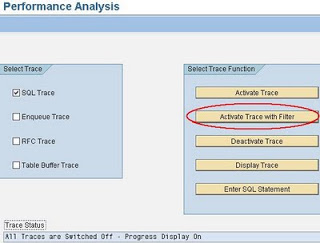
SAP ST05 Performance Analysis, activate trace with filter

NOTE: We are only concerned with an SQL statement that has directly accessed the database (https://help.sap.com/saphelp_nw04/helpdata/en/d1/801f89454211d189710000e8322d00/frameset.htm).
Unless you select the additional tick box “Table Buffer Trace” on the main ST05 screen, to show table buffer accesses, all the trace details in ST05 will be for direct database accesses (bypassing the table buffer).
Since direct database accesses will take longer than the buffer accesses, it is generally accepted that the longer runtimes will be associated with direct database access.

Enter your user id and the name of the report/transaction.  This is so that we can try to limit the records in the trace.  If you want to trace another user, simply enter their user id:
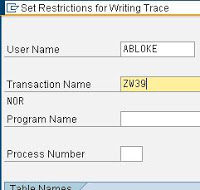
SAP ST05 trace by transaction name

Click Execute to start the trace:

ST05 trace activated

Now in a separate session (preferably) run the transaction/program with the performance problem.
Once you’re happy you have experienced the problem, you can go back into ST05 and click “Disable Trace”  (by default it will remember the trace details and disable the running trace, you won’t need to re-enter all the details):

ST05 trace deactivated

Still within ST05, click “Display Trace“:

ST05 trace display

The system remembers the last trace recorded and should automatically populate the details, but you can always enter them for date/time, user id etc:
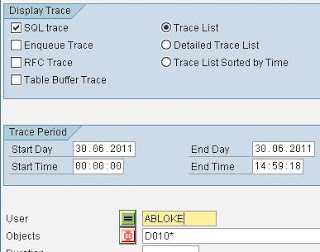
ST05 trace display for user

The SQL trace records are displayed.
The poor performing SQL has it’s time (duration) in microseconds (millionths of a second) highlighted in red if it exceeds 10000 microseconds, 10 milliseconds or 0.01 seconds:

(1 second = 1000 milliseconds = 1000000 microseconds)
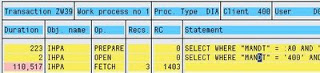
SAP ST05 SQL Trace output

At the top of the window we can see the transaction name (ZW39), the work process responsbile for executing the dialog step in which our statement was contained, the type of work process (DIA or BTC), the client and user and transaction id.
The OP column shows that this session has reused an existing cursor in the DB for this query.
This is because it has a “PREPARE” operation as the first OP before the cursor “OPEN” and not a “DECLARE” (see here https://help.sap.com/saphelp_nw04/helpdata/en/d1/801fa3454211d189710000e8322d00/content.htm).
If the session re-executed this query at another point in the trace, then it is likely (depending on code and available database resources), that the query would have re-used the existing cursor and even no “PREPARE” would have been visible, just OPEN and FETCH (https://help.sap.com/saphelp_nw04/helpdata/en/d8/a61d94e4b111d194cb00a0c94260a5/content.htm)
The deep yellow colour of each line will alternate between a dark and lighter colour when the table (obj name) changes in the list.

The RECS column shows the number of records retrieved in the “FETCH” operation.
The RC column shows the Oracle database return code 1403 (ORA-1403) which you get when you call “FETCH” in a loop and reach the end of the results (see SAP note 1207927).

The STATEMENT column shows the pre-parsed SQL including bind variables (:A1, :A2 etc).
The second line of the STATEMENT column shows the statement in the “OPEN” database call where all the bind variables have been normalised.
Double clicking on the STATEMENT column delves into the SQL statement a little more:

SAP ST05 SQL Trace output SQL statement with bind variables

Here you will see the SQL statement in full (above) and the bind variables, their data types (CH,3 = CHAR(3)) and respective values.
Back on the main trace screen, with the SQL statement selected (single click), you can click the “Explain” button:

SAP ST05 SQL Trace output SQL statement explain plan

Again, you will see the SQL statement with bind variables (remember you can get the values from the other screen) but more importantly, you will see the Oracle Explain Plan.
The Explain Plan shows how the Oracle optimizer *may* choose to execute the statement and the relative costs associated with performing the query (I’ll explain more on this in a later chapter of this guide).
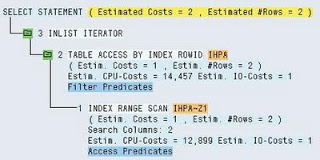
SAP ST05 SQL Trace output SQL statement explain plan

In the above example, you can see that Oracle has chosen to perform an Index Range Scan on index “IHPA~Z1” before going to the table IHPA to get the matching data rows.
Single click the “Access Predicates” on the index and you can see what will be applied to the index scan:
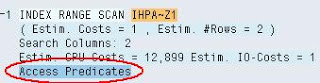
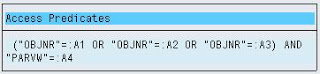
SAP ST05 SQL Trace output SQL statement explain plan access predicates

SAP ST05 SQL Trace output SQL statement explain plan access predicates

Again, you will need to reference the very first SQL view screen to get the bind variables values.
Clicking the name of the index will show the statistics values for the index:

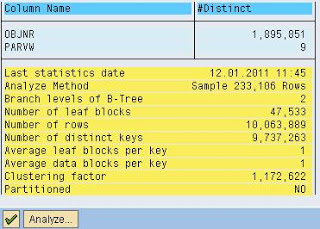
SAP ST05 SQL Trace output SQL statement explain plan index analysis

SAP ST05 SQL Trace output SQL statement explain plan index analysis

You can see the two columns that make up the index (objnr and parvw).
The Analyze button can be clicked to update the index database statistics real-time or as a background job.
WARNING: Be aware that SAP collects statistics in Oracle using it’s own set of predefined requirements as per SAP notes 588668, 1020260 and that you *must* disable the standard Oracle stats gathering jobs as per note 974781. Therefore, the stats may be out of date for a good reason.

The same detail can be seen when clicking the table name.

Back on the main screen, for those who have more knowledge of reading Oracle Explain Plans, you can choose the “EXPLAIN: Display as Text” button, which will display a more detailed Explain Plan that can be copied to a text editor also (I find this very useful):


Plan hash value: 1636536768

----------------------------------------------------------------------------------------
| Id | Operation | Name | Rows | Bytes | Cost (%CPU)| Time |
----------------------------------------------------------------------------------------
| 0 | SELECT STATEMENT | | 2 | 82 | 2 (50)| 00:00:01 |
| 1 | INLIST ITERATOR | | | | | |
|* 2 | TABLE ACCESS BY INDEX ROWID| IHPA | 2 | 82 | 1 (0)| 00:00:01 |
|* 3 | INDEX RANGE SCAN | IHPA~Z1 | 2 | | 1 (0)| 00:00:01 |
----------------------------------------------------------------------------------------

Query Block Name / Object Alias (identified by operation id):
-------------------------------------------------------------

1 - SEL$1
2 - SEL$1 / IHPA@SEL$1
3 - SEL$1 / IHPA@SEL$1

Predicate Information (identified by operation id):
---------------------------------------------------

2 - filter("MANDT"=:A0)
3 - access(("OBJNR"=:A1 OR "OBJNR"=:A2 OR "OBJNR"=:A3) AND "PARVW"=:A4)

Column Projection Information (identified by operation id):
-----------------------------------------------------------

1 - "OBJNR"[VARCHAR2,66], "PARVW"[VARCHAR2,6], "PARNR"[VARCHAR2,36],
"ERDAT"[VARCHAR2,24]
2 - "OBJNR"[VARCHAR2,66], "PARVW"[VARCHAR2,6], "PARNR"[VARCHAR2,36],
"ERDAT"[VARCHAR2,24]
3 - "IHPA".ROWID[ROWID,10], "OBJNR"[VARCHAR2,66], "PARVW"[VARCHAR2,6]

Finally, it’s possible to see the point in the ABAP program where the SQL statement was run.
Single click the statement column, then click the “Display Call Positions in ABAP Program” button or press F5:

The ABAP code will be displayed, and if you are using the new ABAP editor (I think you should), you will be positioned on the statement:

SAP ST05 SQL Trace output SQL statement call in ABAP

Looking at the ABAP statement, you can see how it has been converted from an OPEN SQL statement into an Oracle SQL statement.
The use of the “IN” keyword has been translated into multiple “OR” statements at the Oracle level.

Once at the ABAP statement level, it is sometimes required to know both Oracle SQL and ANSI SQL, since Oracle generally uses it’s own dialect and SAP uses ANSI SQL.
Therefore, you may see the original statement in a somewhat different form, especially when a table join is required on two or more tables.
Lastly, you will notice that the MANDT field is not present in the original ABAP, but it gets added to the predicate list by the ABAP OPEN SQL processor unless you use the “CLIENT SPECIFIED” keyword.

Armed with the SQL performance facts, the knowledge of how to perform an SQL trace and how to link this back to the piece of ABAP code; you should be able to use your database level investigative skills to work out why the statement is causing poor performance.

Make adjustments in the test system and see how the changes affect the performance.
I like to modify the Oracle SQL captured in the SQL trace, then enter it into ST05 (Execute SQL option) with the Explain button, to see if the explain plan is any better.

Some pointers:
– How much data is in the database tables being referenced?
– Is the Explain Plan showing that the query is making best use of available indexes?
– Can you replicate the problem in the test system?
– If this is a custom table, do you need to add additional indexes?
– Could the ABAP OPEN SQL statement be re-written to be more effective (use one query instead of two)?
– Are you SELECTing more fields than you actually need?

You may wish to read the master class in reading Explain Plans from Oracle.
I have blogged before about cardinality in Explain Plans here.

Find part IV of this blog post, here.