This blog contains experience gained over the years of implementing (and de-implementing) large scale IT applications/software.

HowTo: Read ST03 IO Redo Log Per Hour, Log Switches in SAP

Within the SAP St03 transaction, the analysis view “Wait Event Analysis -> IO Redo Log Per Hour” or “Redo Log Switches” (from SAPKB70029 onwards), is able to show you the Oracle redo log switch measure.
SAP Oracle IO Redo Log Per Hour
You will need to adjust the “Minimum Time Between Switches[sec]” and “Maximum Time Between Switches [sec]” values, then click the refresh button.
The results tell you in what hour period, the number of times a redo log switch was performed where the time between the switches was within your defined range.
As an example, the screen shot above shows that on 29-11-2013 between 04:00 and 05:00, a redo log switch occurred on only 1 occasion where the time between one log switch and another was within 120 seconds (2 minutes).
It’s difficult to say if too many log switches is an actual problem for your specific database, but I would tend to investigate any database where the logs are switching on more than a couple of occasions a day, within 60 seconds.

HowTo: Dynamic SQL Server Memory Change from SAP ST04

Scenario: You have a SQL Server database for your SAP system, and you know that right clicking the database server name in SQL Server Management Studio, selecting “Properties” and then “Memory”, will show you the SQL Server memory settings, but you want to know how you can see/change the same detail in SAP…

SQL Server Management Studio - Dynamic Memory

SQL Server Management Studio - Minimum memory

In SAP, you can use transaction ST04 to see the SQL Server database settings.
The memory details are visible in the “Overview” screen.
You will see the “Current Memory MB” equals the amount of memory allocated to SQL Server, and if the “Min server memory” and “Max server memory” settings have been set equal (recommended by SAP), then the overview screen will show “FIXED” for the “SQL Memory Setting”:

SAP SQL Server memory settings

It is possible to modify this setting directly from ST04.
You will need to expand the “Diagnostics” branch and then double click “SQL Command Editor”:

image

On the right hand side, enter the SQL Server commands to resize the memory (notice that these are slightly different to the SQL statements when using them in SSMS):
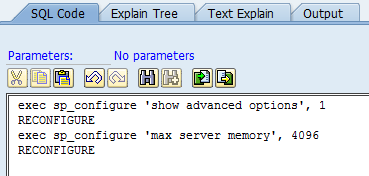
SAP ST04 SQL code execute

exec sp_configure 'show advanced options', 1
RECONFIGURE
exec sp_configure 'max server memory', 4096
RECONFIGURE


Click Execute:

image

The output window will be displayed:

SAP ST04 SQL code execute

If you noticed, I didn’t change the “Min” memory setting, only the “Max”.
When I check in the “Performance -> Overview” screen in ST04, I can now see that the “Current Memory MB” setting has not changed, but the “SQL Memory Setting” is now showing “RANGE”:

SAP ST04 SQL Server memory settings

Now if I use the SQL Command Editor to also change the “Min” memory, we will see the ST04 overview screen update:

SAP ST04 SQL execute

exec sp_configure ‘show advanced options’, 1
RECONFIGURE
exec sp_configure ‘max server memory’, 4096
exec sp_configure ‘min server memory’, 4096
RECONFIGURE


image

And the overview screen:

image

Well, we’re at “FIXED” again, but the amount of memory has not changed.
Yet in SSMS, I can see the allocation has changed:

SQL Server Management Studio memory settings

This is a weird, because the Microsoft documentation for SQL Server 2008R2 (my version) says that the setting should take effect straight away.
I guess there’s something within the ST04 screen that doesn’t update.
There is another way…
You can use the “Configuration -> Overview” screen and the “Configuration Options” tab to see both the Min and Max memory settings.
As per out change, these correctly reflect the current memory settings:
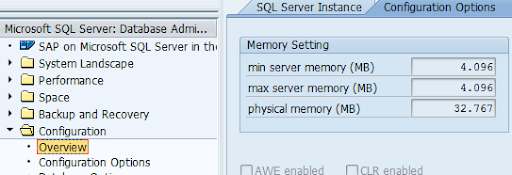
SAP ST04 SQL Server memory settings

WARNING: You should be aware that during testing, I was able to set the Min memory value higher than the Max memory value in ST04.
I was then unable to change this through ST04, as the store procedures just produced errors and refused to let me change the values.
In the end I had to change the Max value using SSMS.

Why You Should Never Use J2EE_ADMIN for SLD Access

If you have a SAP Java stack (either pure or part of a dual stack), you should never ever use the J2EE_ADMIN account (or any other high privileged account) to access the SLD.
This is because on most SAP systems, the standard out-of-the-box installation and configuration for the SLD does not use SSL for communications to/from the SLD.

If you use the J2EE_ADMIN account to access the SLD, then each authentication  request that the SLD issues to the client system (the SAP system querying or updating the SLD) will be sent unencrypted.
If the client system responds with the J2EE_ADMIN account username and password (if you put this in the NWA or RZ70) then the username and password are simply combined into a standard HTTP BASIC authentication response (https://www.w3.org/Protocols/HTTP/1.0/spec.html#BasicAA).

Essentially the username (J2EE_ADMIN) and password are combined into a string like this:  <user>:<password> and then encoded (not encrypted) with BASE64.
This will then be sent in the clear (unencrypted) across the network to the SLD.
If you have Java stack full HTTP tracing turned on, you can see the authentication requests and responses and therefore see the password.
If you have a network packet sniffer installed, then you can see the authentication requests and responses and therefore see the password.

If you have a SAP PI system, you should really consider using SSL (HTTPS) for the SLD traffic.  Since it is possible to completely bring down a SAP PI system by causing mayhem in the SLD.

SAP Secure Storage CL_HTTPSERVER HMAC

During a system copy, you are advised in SAP note 816861 to migrate the entries in the SAP Secure Store through transaction SECSTORE or report RSECADMIN.
When you run those transactions, you only see message SECSTORE031 for the CL_HTTP_SERVER_NET item which uses HMAC (Message Authentication Code).

SAP CL_HTTP_SERVER_NET SECSTORE

If you are simply performing a system copy to an existing system (system refresh) then you do not need to migrate the system just for the CL_HTTP_SERVER_NET item.
As per SAP note 1908221, you can just delete the item CL_HTTP_SERVER_NET from SECSTORE and it will be re-created when the system next starts up.

Overview of Tasks for SAP NW731 System Copy – Java

Below is an overview of the tasks associated with an SAP NW731 system copy for Java on Windows with MS SQL Server (see the ABAP tasks here).  Essentially, this is what I document when I go through the process:

  • Current Base Details (Kernel version etc)
  • Current Profile Files
  • Source Server IDs (Java node IDs)
  • Current J2EE License
  • Current SSL Certificates (export PSEs)
  • Current Database Files
  • Source Database Files
  • Source Disk Usage
  • Target Disk Capacity
  • Current SQL Server Version
  • Current Windows Hotfixes
  • Detach Old Target Database
  • Delete Old Database Files
  • Create Additional Data File Locations
  • Restore Database as Target
  • Rename Logical Files (MS SQL Server)
  • Deploy SWPM
  • Start Java SCS
  • Launch SWPM

Follow standard system copy doc:

  • Adjust server Ids (Java node Ids)
  • Restart Central Instance
  • Remove Old SSL Key Store Views
  • Re-Generate Certificates
  • Re-Configure SSO
  • Database Stats Collection
  • Configure & Schedule Database Backup
  • Adjust Default Database Connection for <sid>adm User
  • Post Process Tasks
  • Release VM Snapshot (or send tapes offsite)
  • Adjust AS-Java Instance VM Settings (de-tune memory)