This blog contains experience gained over the years of implementing (and de-implementing) large scale IT applications/software.

SAP NW 7.31 Java – HTTP Tracing

Scenario:  You would like to trace a HTTP connection to a Netweaver 7.31 Java stack.

Prior to NW 7.31 you would have enabled tracing in either the old Java Administrative Tool, or newer Netweaver Administrator by setting the “enable” flag for tracing parameters of the HTTPProvider dispatcher service (see my previous blog article here).

Since Netweaver 7.31, the Java stack now includes an ICM (Internet Communication Manager) which is the main access point to which HTTP communications are routed to the Java server nodes.
Therefore, tracing in NW 7.31 Java is actually more like the ABAP stack tracing, because you simply increase the trace level in the ICM and then check the dev_icm trace file.

So the next question is, how do you access the ICM to increase the trace level in a Java stack?
Well this can be performed with the help of the SAPMC (only one “M” and not to be confused with SAP MMC for Windows).
The SAPMC was introduced in later NW 7.0 patches and is part of the sapstartsrv service.
The sapstartsrv actually listens on TCP port 5<##>13.  So if you have access through your firewall, navigate to https://<app server>:5<##>13   and the the Java based applet will start up (note that you’ll need Java 1.4 or above on your PC).

Once loaded, you can see the SAP MC and expand the “AS Java” branch to locate the “Process Table” item:

SAP MC management console

From the “Process Table” you should be able to right click the ICM (on the right) and increment the trace level:

SAP MC increase ICM trace level

The trace level is dynamically increased.
To see the trace file, right click again and select “Show Developer Trace“:

SAP MC ICM display trace

You can always see the current trace level by right clicking the ICM and selecting “Parameters…”, or actually right clicking the ICM node further up the tree and selecting “Parameters…”:

SAP MC show ICM parameters

The current trace level is shown as the “rdisp/TRACE” parameter value on the Dispatcher tab:

SAP MC rdisp/TRACE ICM

Again, right clicking the actual ICM node in the tree gives you direct access to the ICM management web page:

MWSnap106 2014-07-23, 09_39_44

From the ICM management page, you can also see the current trace level:

ICM Manager Monitor

Good luck with your tracing.

HowTo: SAP NW731 Java Full HTTP Trace With Headers Content & Timings

Scenario: You have a SAP Java stack which is hosting either some SAP components/modules, or it’s hosting your own custom Java code.
You would like to perform a full HTTP trace so that you can see the HTTP headers and returned content during a HTTP session between your browser and the SAP HTTP Server.  You also wish to see timings for the processing time of the response.
Following SAP note “724719 – How to enable HTTP tracing in the SAP J2EE Engine 6.40/7.0”  connect into the SAP Netweaver Administrator main web page as J2EE_ADMIN:
SAP NWA J2EE_ADMIN
On the left-hand side, select “System Properties”:
SAP NWA System Properties
Select the dispatcher item under “<SID> -> Instance -> Dispatcher”:
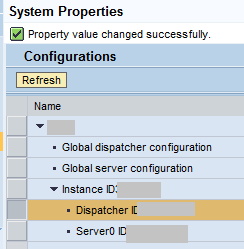
SAP NWA System Properties despatcher
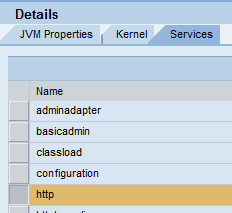
On the Services tab, select “http”:
SAP NWA System Properties despatcher http service
In the “Properties” tab at the bottom, select “HttpTrace” and click the “Modify” button:
SAP NWA System Properties dispatcher http service httptrace
image
Now change the trace setting to the following:
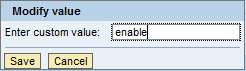
SAP NWA System Properties dispatcher http service httptrace enable
The possible values are described in the SAP note as:
enable
         Using this option will cause the whole requests/responses to be written
enableHeaders
        Using this option will cause only the headers of each request/response to be written
enableHex
        Using this option will cause the whole requests/responses to be written in a 16-column hexadecimal format. This option is valid for J2EE Engine SP10 or higher
enableHexHeaders
        Using this option will cause only the headers of each request/response to be written in a 16-column hexadecimal format. This option is valid for J2EE Engine SP10 or higher
The SAP note also recommends to set the property HttpTraceTime, to “true”.
This is described further in SAP note “972540 – Tracing dispatcher and server response times“.
Since you would only get the dispatcher processing time, you should also set the server trace property as described in the above note, to allow you to see the server processing time:

1) dispatcher + server processing time trace in http access log
– On the dispatcher enable Http Provider#s property #HttpTraceTime#
– On the servers enable Http Provider#s property #LogResponseTime#
Then messages in the httpaccess response file will contain additional fields  d[…] and c[…] where d is dispatcher and server processing time and c is client id.
2) additional traces – if the request is processed for more than XX seconds
– there is a new Http Provider#s property on the server # #TraceResponseTimeAbove#
– if its value is -1 then there will be no additional traces
– if its value is >-1 (the value represents the response time in ms)
    then additional traces will be written in the default trace file only for these requests which response time is >= property#s value
– on the servers put the log severity for HttpProvider service to DEBUG

Once you have enabled the tracing, no restart of the Java stack is required.  It is activate immediately.
Simply check the trace output file /usr/sap/<SID>/<instance>/j2ee/cluster/dispatcher/log/services/http/req_resp.trc  (for NW731+) using operating system level file viewers (or AL11 in an ABAP stack).
For information, you should be aware of the HTTP 1.1 status codes, so you know what to look for if you are tracing an authorisation error (HTTP authorisation) or some other HTTP related issue  https://www.w3.org/Protocols/rfc2616/rfc2616-sec10.html .

Overview of Tasks for SAP NW731 System Copy – Java

Below is an overview of the tasks associated with an SAP NW731 system copy for Java on Windows with MS SQL Server (see the ABAP tasks here).  Essentially, this is what I document when I go through the process:

  • Current Base Details (Kernel version etc)
  • Current Profile Files
  • Source Server IDs (Java node IDs)
  • Current J2EE License
  • Current SSL Certificates (export PSEs)
  • Current Database Files
  • Source Database Files
  • Source Disk Usage
  • Target Disk Capacity
  • Current SQL Server Version
  • Current Windows Hotfixes
  • Detach Old Target Database
  • Delete Old Database Files
  • Create Additional Data File Locations
  • Restore Database as Target
  • Rename Logical Files (MS SQL Server)
  • Deploy SWPM
  • Start Java SCS
  • Launch SWPM

Follow standard system copy doc:

  • Adjust server Ids (Java node Ids)
  • Restart Central Instance
  • Remove Old SSL Key Store Views
  • Re-Generate Certificates
  • Re-Configure SSO
  • Database Stats Collection
  • Configure & Schedule Database Backup
  • Adjust Default Database Connection for <sid>adm User
  • Post Process Tasks
  • Release VM Snapshot (or send tapes offsite)
  • Adjust AS-Java Instance VM Settings (de-tune memory)

SAP PI Integration Builder Unable to Launch and Verify Fail

When starting the Integration Builder or any other Java based application for SAP PI, you get a Java error displayed on your PC for the aii_bdir_client.jar stating that it was “Unable to launch the application” or verify the Java signature.

This problem is caused by the expiration of the self-signed Java certificates that certify the server where the Java classes are deployed from for the Java Web Start functionality.

To fix the issue:

– From the main SAP PI Web Screen (https://<server>:50##00/rep), select “Administration” in the top right.
– Log in with your PISUPER user.
– Then on the left-hand side, select “Java Web Start Administration”.
– On the right click the “Re-initialization and force signing” button.

– Select the “Directory” tab on the left-hand side.
– Then on the left-hand side, select “Java Web Start Administration”.
– On the right click the “Re-initialization and force signing” button.

– Close Internet Explorer.

When you next try accessing the Integration Builder (or other Java Apps), you will be presented with a holding screen whilst the Java server collects and re-signs all the required Java classes.

It usually takes around 5-10 minutes to complete.
After completion, the Java apps should work as before.

Java VM 5.0 Default Heap Size

If you have Java 5.0 (1.5), you may wish to know the default heap size for a JVM.
If you don’t specify -Xmx or -Xms to control the heap size, then the defaults are used.

They are described in detail in the strangely title “Ergonomics in the 5.0 Java Virtual Machine” page here: https://www.oracle.com/technetwork/java/ergo5-140223.html

The page states:
In the J2SE platform version 5.0 a class of machine referred to as a server-class machine has been defined as a machine with
2 or more physical processors
2 or more Gbytes of physical memory

On server-class machines by default the following are selected.
Throughput garbage collector
Heap sizes
initial heap size of 1/64 of physical memory up to 1Gbyte
maximum heap size of ¼ of physical memory up to 1Gbyte
Server runtime compiler

So if you have a “server class” machine, you could expect your Java 5.0 JVM to utilise a maximum of 1GB of heap with no tuning (-Xmx & -Xms).

Although it’s not very clear, it seems that a non-“server class” machine would allocate the same as a Java 1.4.2 virtual machine:

In the J2SE platform version 1.4.2 by default the following selections were made
Serial garbage collector
Heap sizes
initial heap size of 4 Mbyte
maximum heap size of 64 Mbyte
Client runtime compiler

Therefore, a maximum of 64MB of heap would be utilised.

I don’t know if a single dual core CPU is recognised as a “server class” machine, but you can find out what your Java version thinks your machine is by running:

> java -help
Usage: java [-options] class [args...]
(to execute a class)
or java [-options] -jar jarfile [args...]
(to execute a jar file)

where options include:
-d32         use a 32-bit data model if available
-d64         use a 64-bit data model if available
-client       to select the "client" VM
-server      to select the "server" VM
-hotspot    is a synonym for the "client" VM [deprecated]
                 The default VM is server,
                 because you are running on a server-class machine
.

-cp <class search path of directo....

As you can see, the output tells you that it thinks you are running on a “server class” machine.

Either way, it’s probably best to use the “-server” command line option to be sure, plus the “-Xmx” option to restrict memory usage if you don’t need a whole 1GB heap.