This blog contains experience gained over the years of implementing (and de-implementing) large scale IT applications/software.

SAP Kernel to EXT or not to EXT…

Scenario: You’re at the point where you are installing a new system and your choice of Kernel is down to the EXT version or the non-EXT version.  Which version should you use?

The difference between the EXT version of a Kernel and the non-EXT version of a Kernel, is simply down to the version of the compiler and compilation Operating System used by SAP to compile the Kernel binaries.

As an example, the 7.21 kernel could be compiled on Windows 2003 Server, using the Visual Studio 2010 compiler.
The 7.20EXT kernel could be compiled on Windows 2003 Server, using the Visual Studio 2012 compiler.

The difference is all about the compilation environment, and nothing to do with functionality.  Or is it…
If you look at SAP note 1926209 – “Questions on subjects of 7.20/7.21 EXT kernel and C/C++ runtime“, this would seem to be the case.
However, read SAP notes 1756204 – “Activate fast polling”  and 1728283 – “SAP Kernel 721: General Information” , you will see that it seems to suggest that SAP can and will change the functionality between an EXT and non-EXT kernel (7.21 is used as the example here).
So, be wary and always read up about the benefits of each Kernel, whether EXT or not.

Finding Your SAP F&R Version

The Forecasting & Replenishment offering from SAP runs on SAP SCM.
SAP originally bought the F&R binary calculation engine from a Swiss company called SAF.  This was integrated to the SCM platform and is called through an RFC connection.

If you’re planning an upgrade you need to easily identify which version you’re running.

There are two areas to check:
– The SAP SCM version.
– The SAF (FRP) binary version.

Check in SPAM (or in SAP GUI, System -> Status -> Component Version) for the SAP SCM Server version.

Note that:
SCM 7.02 (EHP 2) = F&R 5.2.
SCM 7.01 (EHP 1) = F&R 5.1.

Checking the SAF binary must be done at the operating system level.
The usual location is either “/usr/sap/<SID>/SYS/global/frp/bin” or “/usr/sap/<SID>/FRP/bin”.

As the <sid>adm user simply call the “safcnfg” binary with the “-version” command line option:

SAP F&R SAF binary version  

See SAP note 1487615 for details on where to find FRP binary patches.

Finally, you should note that SAP SCM is itself a Business Suite software package like SAP ERP.  Therefore, it is not classed as a HUB or Sidecar landscape pattern, but instead, a source business system.  This means that there is no real dependency link to the SAP ERP version (providing you’re on the same technology platform level e.g. 7.31). 
You do need to consider that the interface from ERP to F&R may need some notes applying, some of which may be better implemented through an SPS upgrade instead of notes upon notes. 

See application component SCM-FRE-ERP.

SAP FRP Data Environment Locations

The locations on disk where the SAP FRP data environments are stored, are administered through transaction /FRE/FRP_ADMIN.

However, if you don’t have authorisation for this transaction, you can also check the table “/fre/frpmid_srv” (a client dependent table).

SAP NW 7.31 Java – HTTP Tracing

Scenario:  You would like to trace a HTTP connection to a Netweaver 7.31 Java stack.

Prior to NW 7.31 you would have enabled tracing in either the old Java Administrative Tool, or newer Netweaver Administrator by setting the “enable” flag for tracing parameters of the HTTPProvider dispatcher service (see my previous blog article here).

Since Netweaver 7.31, the Java stack now includes an ICM (Internet Communication Manager) which is the main access point to which HTTP communications are routed to the Java server nodes.
Therefore, tracing in NW 7.31 Java is actually more like the ABAP stack tracing, because you simply increase the trace level in the ICM and then check the dev_icm trace file.

So the next question is, how do you access the ICM to increase the trace level in a Java stack?
Well this can be performed with the help of the SAPMC (only one “M” and not to be confused with SAP MMC for Windows).
The SAPMC was introduced in later NW 7.0 patches and is part of the sapstartsrv service.
The sapstartsrv actually listens on TCP port 5<##>13.  So if you have access through your firewall, navigate to https://<app server>:5<##>13   and the the Java based applet will start up (note that you’ll need Java 1.4 or above on your PC).

Once loaded, you can see the SAP MC and expand the “AS Java” branch to locate the “Process Table” item:

SAP MC management console

From the “Process Table” you should be able to right click the ICM (on the right) and increment the trace level:

SAP MC increase ICM trace level

The trace level is dynamically increased.
To see the trace file, right click again and select “Show Developer Trace“:

SAP MC ICM display trace

You can always see the current trace level by right clicking the ICM and selecting “Parameters…”, or actually right clicking the ICM node further up the tree and selecting “Parameters…”:

SAP MC show ICM parameters

The current trace level is shown as the “rdisp/TRACE” parameter value on the Dispatcher tab:

SAP MC rdisp/TRACE ICM

Again, right clicking the actual ICM node in the tree gives you direct access to the ICM management web page:
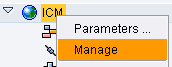
MWSnap106 2014-07-23, 09_39_44

From the ICM management page, you can also see the current trace level:

ICM Manager Monitor

Good luck with your tracing.

Power Notes Searcher Updated to v1.1

The Chromium project has recently (May 2014) fixed a bug in the Chrome web browser which means that users of my Power Notes Searcher Google Chrome extension may have seen an issue with the table ordering in the SAP Notes history table.

I have now made a slight correction to the extension and v1.1 is now available for update/install in the Google Chrome Extensions Web Store (or from the link on my initial blog post here).

If you haven’t already installed my extension, give it a go.  You don’t know what you’re missing!