This blog contains experience gained over the years of implementing (and de-implementing) large scale IT applications/software.

Netgear ReadyNAS Duo Samba Performance

If you access your Netgear ReadyNAS Duo via your Windows Explorer and you think it’s a little slow when reading/writing, then you could get a little speed boost from adding one line to the Samba configuration.

You’ll need access as root via SSH to log into the ReadyNAS.

Backup the current config file:

# cp -p /etc/samba/smb.conf  /etc/samba/smb.conf.bak
Then as root, edit the samba config file:

# vi /etc/samba/smb.conf
Add the new line under section “[global]”:

socket options = TCP_NODELAY IPTOS_LOWDELAY SO_RCVBUF=65536 SO_SNDBUF=65536
Save the file (ZZ).

Restart Samba:

# /etc/init.d/samba restart

Stopping Samba daemons: nmbd smbd.
Starting Samba daemons: nmbd smbd.

You should notice a performance improvement when transferring files.

HANA OOM Error Tip #1 – Partition Tables Correctly

If your HANA system is regularly experiencing OOM (Out Of Memory) errors, then there are a number of things that you can do to try and reduce memory consumption.

Tip #1:  Partition Large Tables Correctly
If there are large Column Store tables in your HANA system, you should partition them.
Whilst this is an absolute must in a HANA scale-out scenario (for enabling multi-node parallelism), it might not be so obvious that it can also help in a single node HANA system.
Partitioning a column table means that only the required partitions of the table are loaded into memory when accessed, you would think.

Partitioning a large table into smaller chunks will therefore help to reduce the memory usage of the table during SQL queries and also during updates.
During updates, each partition gets its own delta cache area.

Choosing how to partition a table is slightly more difficult and will depend on whether the table is a custom table, SAP standard table or other.
Plus, you will need to know what and how queries or updates are executed against the table.  A period of monitoring is suggested, to enable to you collect the required information to be able to make a decision.

One thing you should try to do, is partition the table using the most logical, selective columns.
Read on for a simple example with a twist!

A simple example, a single node HANA system has 1 large column table T1.
The table is partitioned into ranges based on the date column INVOICEDATE:

CREATE COLUMN TABLE “DARRYL”.”T1″ (“INVOICEREF” VARCHAR(1) NOT NULL ,
     “INVOICEDATE” DAYDATE CS_DAYDATE NOT NULL ) UNLOAD PRIORITY 5 AUTO MERGE WITH PARAMETERS (‘PARTITION_SPEC’ = ‘RANGE year(INVOICEDATE) 2000-2001,2001-2002,2002-2003,*’)
;
CREATE UNIQUE INDEX “I1” ON “DARRYL”.”T1″ ( “INVOICEREF” ASC ) NONLEAF PARTIAL KEY LENGTH 1;

As you can see, I’ve created 3 partitions by year:  2000 to 2001,  2001 to 2002 and 2002 to 2003.
This will actually create 4 partitions:  year 2000,  year 2001, year 2002 and year <OTHER>.

HANA Table Distribution

Insert 5 records into the table:

insert into darryl.t1 (INVOICEREF,INVOICEDATE) values(‘1′,’2000-01-01’)
insert into darryl.t1 (INVOICEREF,INVOICEDATE) values(‘2′,’2001-01-01’)
insert into darryl.t1 (INVOICEREF,INVOICEDATE) values(‘3′,’2002-01-01’)
insert into darryl.t1 (INVOICEREF,INVOICEDATE) values(‘4′,’2003-01-01’)
insert into darryl.t1 (INVOICEREF,INVOICEDATE) values(‘5′,’2004-01-01’)

Inside the Table Distribution tab, you will now see that the records have been inserted according to their values into the respective partitions (see Raw Record Count field on the right):

HANA Table Distribution

The last two records for year 2004 and 2003 are in the fourth partition.
You can also see that each partition has a Delta Size, and that the Delta Size for the fourth partition with the most records, is larger than the other partitions.
Unload the table from memory:
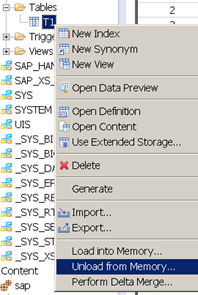
HANA Unload Table from memory

Refreshing the Table Distribution tab now shows the table partitions to have zero size in memory:

HANA Table Distribution

Now select the records for the years 2004 and 2005 only:

select * from darryl.t1 where invoicedate in (‘2004-01-01′,’2003-01-01’)

Refreshing the Table Distribution tab now shows the tables to have non-zero size in memory for ALL partitions!
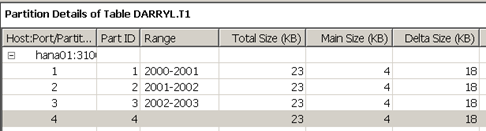
HANA Table Distribution

All of the records from all of the partitions appear to be loaded!
What went wrong?
Well, it’s simple, we didn’t create an index on the column INVOICEDATE.
This forced HANA to scan through the entire table to access the required records, meaning that it needed to load them all into memory.

Let’s create an index in INVOICEDATE:

CREATE UNIQUE INDEX “I1” ON “DARRYL”.”T1″ ( “INVOICEDATE” ASC ) NONLEAF PARTIAL KEY LENGTH 1;

Unload the table from memory:

HANA Unload Table from memory

Refreshing the Table Distribution tab now shows the tables to have zero size in memory:

HANA Table Distribution

Now re-execute the SELECT statement:

select * from darryl.t1 where invoicedate in (‘2004-01-01′,’2003-01-01’)

Once again, on the Table Distribution tab, we can see that it has accessed all partitions, AGAIN!:

HANA Table Distribution

What went wrong this time?  Well, HANA doesn’t yet have any statistics on the table data, so it simply ignored the index.
If you now unload the table from memory once again (we haven’t done anything else):

HANA Unload Table from memory

Now re-execute the SELECT statement:

select * from darryl.t1 where invoicedate in (‘2004-01-01′,’2003-01-01’)

Look at the Table Distribution tab:

HANA Table Distribution

You can see that HANA has now only accessed the final partition of the table.  The other partitions have not been loaded into memory.
At first I thought this feature might be due to statistics, so I tried removing them from the table T1 (drop statistics on T1;).  Then I retried the process of unloading and re-running the query.  This had no effect, HANA correctly went straight to the fourth partition.
This left me with one other option, the Plan Cache.

Clearing the Plan Cache using:

ALTER SYSTEM CLEAR SQL PLAN CACHE

I then re-ran the test by unloading the table from memory:

HANA Unload Table from memory

Re-executing the SQL SELECT:

select * from darryl.t1 where invoicedate in (‘2004-01-01′,’2003-01-01’)

Look at the Table Distribution tab:

HANA Table Distribution

Bingo!
The Plan Cache was storing some form of execution plan statistics that meant that it was accessing the fourth partition straight away.
Each time the table is unloaded, the statistics from the existing Plan Cache remain and are re-used upon next execution of the query, which means HANA is able to go straight to the fourth partition.

Summary:
Partitioning is a great way of parallelising access to a table in HANA.
It also serves to help reduce memory by only loading specific partitions into memory when they are required.
In order to effectively use partitioning, you need to partition on an indexed column.
The initial access of a newly partition table with a new index, does not enable the benefits of partition until the second subsequent access of the table due to the Plan Cache.  A method/process of pre-loading the execution plan/statistics into the cache is required.

DBCLONE Is Still Running, Running & Running Running…

Scenario: Your running through an upgrade of SAP on Oracle, either applying an EHP or a support package stack update.  You’re using the “Standard” downtime minimized approach and you’ve got to the SUM stage MAIN_SHDCRE/SUBMOD_SHDDBCLONE/DBCLONE and it has just bailed out!

During the DBCLONE step, a number of background jobs are created that copy certain tables, programs sources etc, from the current SAP database schema, to the shadow instance schema (on Oracle SAPSR3SHD).
The copies of the tables, sources etc, are placed into the new tablespace that you were asked to create in the earlier steps.

During this copy process, the database will be generating a lot of redo information (it is performing a lot of INSERTs).  This means that it will be generating a lot of archive logs also.  Most systems are in archive log mode by default, as this is the safest way of upgrading a production system.

The DBCLONE step can take a long time depending on a few factors:

  • Size of your SAP system master data.  Since the transactional data is not copied, most SAP systems will be roughly the same sort of size for the master data tables and sources etc (e.g tables D010TAB, D010INC, REPOSRC).  Don’t forget, once tables are cloned, it needs to build the required indexes on those tables too!  Then it will gather stats on the tables and indexes.
  • Quality of your database.  If your Oracle database is highly fragmented, the indexes are not in good shape, or there is a lack of memory allocated to the database.

  • Redo disk write times.  The faster the write times for redo, the quicker this is going to go.
  • Number of parallelised jobs.  The SUM tool recommends 3 jobs in parallel.  Prior to this SUM step, you would have been asked to configure the number of parallel jobs (and also your number of background work processes).  If you configure less than 3, then it will take longer.  I would personally recommend to have n+3, where n= your normal production number of background work processes.  This means you will not be hampering day-to-day usage by blocking background jobs.  The 3 jobs are created with high priority (Class A) so they get all the background processing they need.
  • Whether you elected to pre-size the new shadow tablespace data files.
    Setting them to autoextend is fine, but by default, the SAP brspace commands create the files with only 200MB.  By setting these files to be as big as they need to be (no autoextend) then you will save time.

During the DBCLONE step, the SUM tool monitors progress by RFC connection into the SAP system.  It checks to see when the DBCLONE background jobs complete (and that they complete successfully).
If you have limited space available in your archive log area, and this fills up, then the RFC connection from SUM fails to work (archiver stuck issue).
This causes SUM to report that the step has aborted, but that DBCLONE was still running.

You will still see DBCLONE running in the background when you resolve the archiver stuck issue.
At this point, you could choose to manually cancel the jobs by “Cancel without Core” in SM50 for the busy background work processes where DBCLONE is running.  However, they are still running, and simply waiting until they have finished, then restarting SUM, will continue from where it left off.

It knows where it got to, because it records the list of tables cloned in the SAPSR3.PUTTB_SHD table by setting the CLONSTATE column to ‘X’.
During the cloning process, the tables to be cloned are assigned to background jobs using the CLONSTATE column in the SAPSR3.PUTTB_SHD table.

You can monitor the cloning progress by using the following SQL:

SQL> select count(*) num, clonstate from SAPSR3.PUTTB_SHD group by clonstate;

You will notice that the CLONSTATE column will contain:
‘X’  – Tables cloned.
‘1’  – Tables on the work list of background job DBCLONE1.
‘2’  – Tables on the work list of background job DBCLONE2.
‘n’  – Tables on the work list of background job DBCLONEn.
‘  ‘  – Tables not being cloned.

As tables are cloned, the CLONSTATE changes from ‘n’ to ‘X’.
It seems that larger tables are performed first.

The method used to clone the tables is: “INSERT into <table> SELECT (<fields>) FROM <source>;”.
Then a “CREATE INDEX” is performed.

It’s also worth noting that you may need enough PSAPTEMP space to account for the index creation.
In a Solution Manager 7.1 SPS10 system, there are 13109 tables to be cloned.

As a final parting comment, if you have Oracle 11gR2, you should consider the database compression options available to you.  Reducing the I/O requirements will massively help speed up the process.

Solaris 10 – Asynch I/O on UFS – Not Really

Whilst investigating a performance issue on an Oracle 10.2.0.5 database running on Solaris 10, I had to do a little digging to discover exactly how asynchronous I/O is implemented within Oracle when the database is using the UFS filesystem.

It was not as straightforward as i thought, because I had to start from the beginning and not trust any current Oracle settings.  For example, FILESYSTEMIO_OPTIONS was set to “ASYNCH” in the spfile.
This would normally indicate that a DBA has specifically determined that ASYNCH I/O is possible and that they do not want to use DIRECTIO (or concurrent I/O).

Yet, reading the SAP notes, you would think that this is a moot point.
SAP note  830576 “Parameter recommendations for Oracle 10g” v227 clearly states that Oracle 10.2 on Solaris with UFS filesystems, supports asynchronous I/O, so therefore set the FILESYSTEMIO_OPTIONS to “SETALL”.

However, if you have access to “My Oracle Support” you can check Oracle document “SOLARIS: Asynchronous I/O (AIO) on Solaris (SPARC) servers (Doc ID 48769.1)” which explains that, in Solaris with UFS, Oracle does not actually perform asynchronous I/O at the kernel (Solaris) level.  Instead, Solaris simulates AIO by performing parallel writes (calls pwrite() ) but to Oracle it still looks and feels like KAIO.
So, the details in the SAP note are not exactly accurate.  AIO is not supported in Solaris, but is simulated.  Also, the simulation is just issuing more parallel I/O requests. 

If your disk sub-system is slow, it’s still going to be slow, but Oracle writes might be slightly faster if you handle/tune for more parallel requests at the storage layer.

Here’s a nice article that explains it really well:  https://sunsite.uakom.sk/sunworldonline/swol-07-1998/swol-07-insidesolaris.html

Find RMAN Backup Statistics

You can query the view V$BACKUP_SYNC_IO (for synchronous tape devices) to obtain the average MB transfer speed from RMAN to the tape device (or intermediary software if using the obk interface):

SQL> select avg(EFFECTIVE_BYTES_PER_SECOND)/1024/1024 MB_per_s
       from V$BACKUP_SYNC_IO
      where DEVICE_TYPE='SBT_TAPE';

MB_PER_S
-----------
16.1589822