This blog contains experience gained over the years of implementing (and de-implementing) large scale IT applications/software.

Use of Oracle AWR / ASH leading to bad coding?

I had a brief email exchange with another Oracle guru the other day.
He suggested that the quality of Oracle coding in PL*SQL and Plain Jane (www.medicaltextbooksrevealed.com/blog/2010/02/plain-jane/) SQL had gone down hill.

This could be attributed to two factors:
1, The level of coding experience has dropped.  Older more experienced coders have filled into the new architect roles and the void is being filled quickly by newer in-experienced coders.
2, The rigour with which debugging, testing and tuning is performed has become somewhat lax (www.thefreedictionary.com/lax ) because there’s just no emphasis on the developers to tune their code when the DBA has such great tools to do it for them.

Is it possible that the use of the additionally licensed tools such as AWR (Automatic Workload Repository) and ASH (Active Session History) introduced in Oracle 10g, have provided an easy mechanism for DBAs to seek out better performance.
I don’t think these tools are just for DBAs, but the way they are marketed makes me feel they are pushed that way.

Running Oracle (Windows vs UNIX/Linux)

For most of my IT career I’ve been using UNIX/Linux (let’s call this ULix to save my fingers) to run Oracle.
Humans are creatures of habit (like cats https://www.simonscat.com/) and so why would I want to change this.
Running Oracle on ULix is a measured quantity.  It works, it’s reliable, you can tune it and then you can really tune it.

Whilst browsing my book library I came across a book I’ve had for years:
Configuring & Tuning Databases on the Solaris Platform” by Allan N. Packer
If you have ever wondered what the possibilities are in tuning an Oracle system on ULix, then read this book.  It might be old, but it’s a good one, and it establishes all the basic principles of tuning.

Now if we were to consider running Oracle on Windows (https://www.dba-oracle.com/art_builder_linux_oracle.htm), then out-of-the-box (https://www.ukrapmusic.com/mixtapes/717-rootz-sparka-presents-out-of-the-box) it would work perfectly fine.

Microsoft have made vast improvements to the monitoring/tuning capabilities in newer Windows Server versions, but I don’t think this can compare to the flexibility of monitoring/tuning in ULix.
I find it very difficult to profile a database on Windows.
Think about it, where can I see the individual shadow processes (https://cavyspirit.deviantart.com/art/Don-t-Mess-with-Shadow-Process-194711067) at the OS level?

On Tanel Poder’s company’s website, there’s a great whitepaper “Understanding LGWR, Log File Sync Waits and Commit Performance”.
In this whitepaper, Tanel mentions monitoring and tuning the Oracle log writer (LGWR) process to get better CPU time.  I thought to myself, how would someone do this on Windows?

I really don’t think you can.
To summarise: I like Windows, it can run Oracle RDBMS perfectly fine, but it’s not as flexible as running on ULix.

Basic Performance Tuning Guide – SAP NetWeaver 7.0 – Part I – Finding Slow Running Programs

For me, as a BASIS administrator, it’s the most fun part of the job.  Performance tuning!
I enjoy making things faster, more efficient.  It seems German (
https://www.urbandictionary.com/define.php?term=german%20efficiency) in some ways, and I guess that I must have a little OCD in me, but it’s rewarding.

I can’t believe how simple performance tuning can be sometimes.  If I write the process down it even seems simple:
1, Find slow running programs.
2, Analyse why they are slow or poor performers.
3, Tune them.
4, Cup of tea.
5, See them fly.

For those Lean Six Sigma followers, this fits in with DMAIC (https://en.wikipedia.org/wiki/Six_Sigma) quite nicely.
I bet it would even look good on a fish bone diagram (
https://www.leansixsigmasource.com/2009/04/15/how-to-construct-a-fishbone-diagram/) (sorry, I did mean “cause & effect diagram” honest).

I’m going to break these steps down.

Let’s start with number 1:Find Slow Running Programs
So you have your new SAP system all installed.
The consultancy that briskly implemented it and have now rolled-off, have left it running beautifully (
https://www.zdnet.com/blog/projectfailures/san-diego-fires-axon-over-erp-implementation-problems/1960).

Why wouldn’t they.
As an operations specialist (
https://www.it-implementor.co.uk/2011/06/are-you-sure-im-not-consultant-not.html), you get called in.
Of course, you’re an expert and you know that profiling a system is one of those tasks that needs to be done to help you troubleshoot performance problems.  But being an expert, you also know that there are bigger fish to fry after a fresh implementation of anything.
So we assume that it is not plausible to use a comparative profile of before and after performance.

Let’s assume that a report/transaction has been reported as running slowly today by a single user (one helpdesk ticket https://lukasland.com/humour/Computing-General/Help-Desk-Hell.htm).
You’re on the case and you can look at the problem right now.
What’s you’re first call?
Wrong!  Crying won’t get you anywhere!
We need to see if the problem is caused by the system in general, the user (sometimes you do get them) or something else.
I always use the following methods:

1, Check SM66 (global work process overview). It’s easier than checking SM50, then remembering that you’re on a system with Apps servers (additional dialog instances).
What’s currently running?
Look specifically at the “Time” and “Action” columns:

  SM66 global work process overview

If there are any long running programs (large “Time” values) in the list, what “Action” are they performing?  Could it affect the report that the user has identified as being slow?

2, Check SM21 (System Log) always good to keep abreast of potential system wide issues!  Brownie points (https://en.wikipedia.org/wiki/Brownie_points) from the big boss for being so quick!
Any problems in here will also mention short dumps in ST22, so no need to check ST22 unless it’s in the system log.

3, Check STAD (SAP Workload – Single Business Transactions).  This shows specific transactions that the user has completed in the <n>hours (after this they get aggregated and shown in ST03N/ST03G depending on your collector settings).
Use the “Show Business Transaction Tots” option, it’s easier to see the wood for the trees (https://www.woodfortrees.org/).
Enter the username into the filter and adjust the time period to search for (when did the problem happen?).
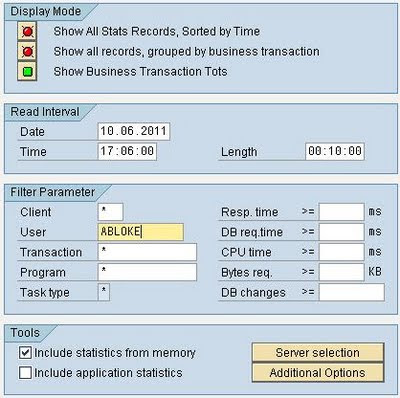
 STAD single business transactions

Great!  You can see the individual transactions performed by the user (even ITS based services e.g. BSPs will be shown):

TIP: Try it without the filter on a small system to see what you can actually get.  It’s quite a lot of information.  RFCs, background jobs, HTTP.

 STAD business transaction analysis

Check out the “Response Time”, “CPU time” and “DB req time” columns.
See if any specific transaction stands out above the rest for these three values.

If you expand the “+” folder on the very left, you will see each dialog step (screen) that the user has been through:

 STAD business transaction analysis output

The time gap between each screen is the previous screens response time + roll-time + front-end time + “Think Time”.

So now you’ve found the slow program, you need to analyse it.
Part II of this guide shows how to read and decipher the single record statistics using STAD.
Part III of this guide shows how to perform an SQL Trace.